Last Updated: 2026-02-25 20:42
Just got home from work. It took me about a day and a half—from starting the deployment yesterday afternoon to finally getting “Little Crawfish” (OpenClaw) running on Telegram tonight. So, I figured it was time to write a proper guide.
Some of you might prefer not to deal with Tokens and such; I’ve already tested the local deployment method, so I’ll be adding a tutorial for that later as well. I hope this helps everyone out!
🛠 Prerequisites
- A Windows 11 PC
- A Stable Internet Connection
A few notes: If you have a Mac, the deployment process is actually much simpler… unfortunately, I don’t own one (cries in Windows~). The reason I’m using Windows 11 is simply because that’s what I have. Theoretically, Windows 10 should work fine, but I haven’t tested it.
By a “stable internet connection,” I mean you need to be able to access the global internet. Most of the components need to be downloaded from external servers, not just a local area network. (Then again, if you managed to find this article through a search engine like Google, you’re probably already good to go!)
So, yeah, it’s really that simple. Let’s get started.
Deployment Prep
Next, we’re going to use WSL (Windows Subsystem for Linux) to install OpenClaw.
First, click the magnifying glass (search icon) at the bottom left of your screen, or use the search bar at the top of the Start menu, and search for PowerShell. Hover over the icon, right-click, and select Run as Administrator.
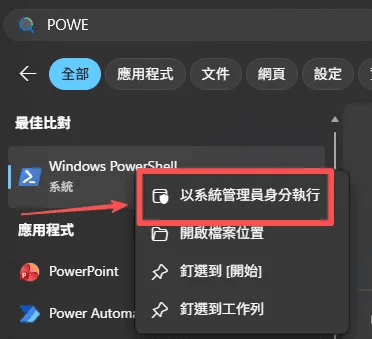
Once it’s open, type the command highlighted in red below into the window. If you don’t feel like typing, just Ctrl+C to copy it—but a quick heads-up: Ctrl+V won’t work here! Move your cursor into the PowerShell window, left-click inside to focus it, and then right-click to paste. (You’ll definitely need this trick later since there are plenty of long commands coming up—unless you actually want to type them all out? laughs)
wsl --installThis will trigger the automatic WSL installation process. (Note: It might feel a bit slow or even look like it’s stuck midway—that’s totally normal, don’t panic!)
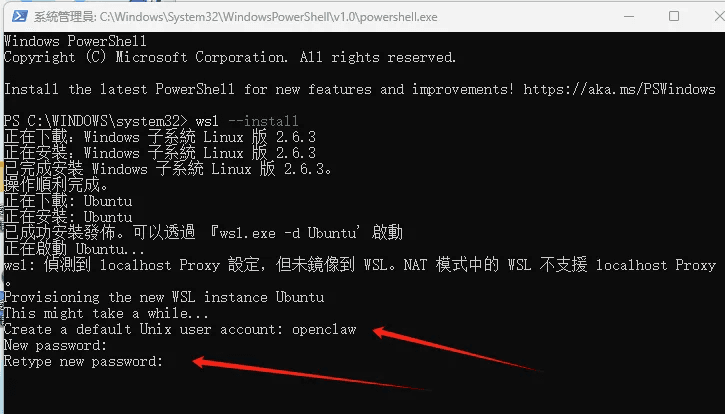
Once the installation is complete, you’ll see a prompt to Create account: This is just for your new username. Pick anything you like, but make sure to remember it!
Next up is the new password section—this is where you set your password. Crucial note: When you type your password here, no characters will appear on the screen. Even if you type “1234,” the cursor will stay exactly where it is. Don’t worry about it; just type your password as usual and hit Enter.
At the retype new password prompt, just enter the same password again and hit Enter one more time.
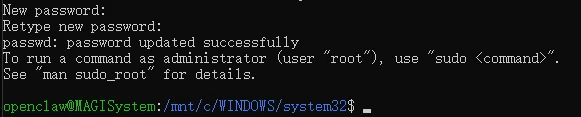
your screen matches the screenshot below—Congratulations! You’ve officially cleared the first hurdle.
Deployment Phase
Now, let’s get down to business. Close the PowerShell window you just used, head back to the search bar at the bottom left of your screen, and search for Ubuntu. Again, right-click and select Run as Administrator. (Technically, you might not need admin rights here, but let’s do it anyway just to play it safe and avoid any hiccups.)
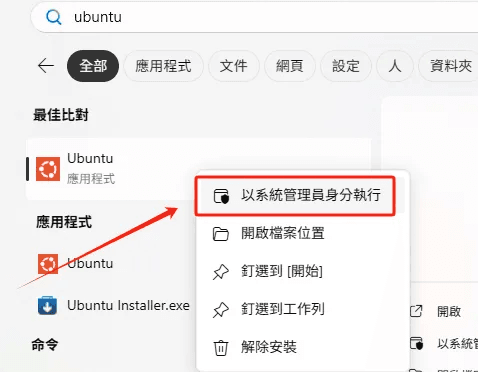
Under normal circumstances, performing the WSL installation should have automatically installed Ubuntu along with it. It should pop right up in your search results.
However, I had one machine where it just wouldn’t install automatically—so I had to do it manually.
If you’re in the same boat, don’t worry, the fix is simple: just open the Microsoft Store, search for “Ubuntu,” and hit install from there.

1. Install NVM (Node Version Manager)
Run the following command:
curl -o- https://raw.githubusercontent.com/nvm-sh/nvm/v0.39.7/install.sh | bashJust like before, Ctrl+C to copy and right-click to paste. You should see the installation process start running.
2. Activate NVM
Copy and paste these lines:
export NVM_DIR="$HOME/.nvm"
[ -s "$NVM_DIR/nvm.sh" ] && \. "$NVM_DIR/nvm.sh"
Don’t worry if the text wraps or looks a bit messy when you paste it; it’ll work just fine.
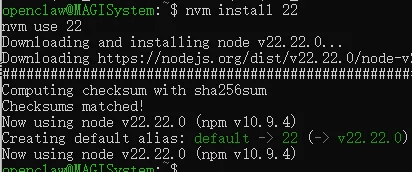
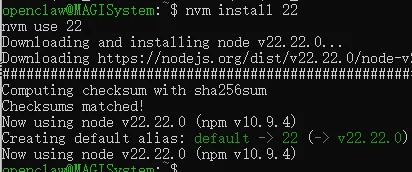
3. Install and Use Node 22
Finally, run these two commands:
nvm install 22
nvm use 22
And that’s it! Node.js is now officially installed on your system.
Installing OpenClaw
The most exciting (and admittedly, the most tedious) part is finally here!
Run the following command in your Ubuntu terminal to start the installation:
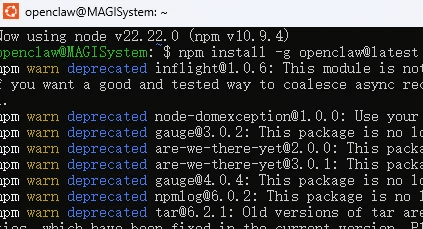
npm install -g openclaw@latestWait a bit—this might take a while, so just let it do its thing.
Once the installation is complete, enter this command to configure the system:
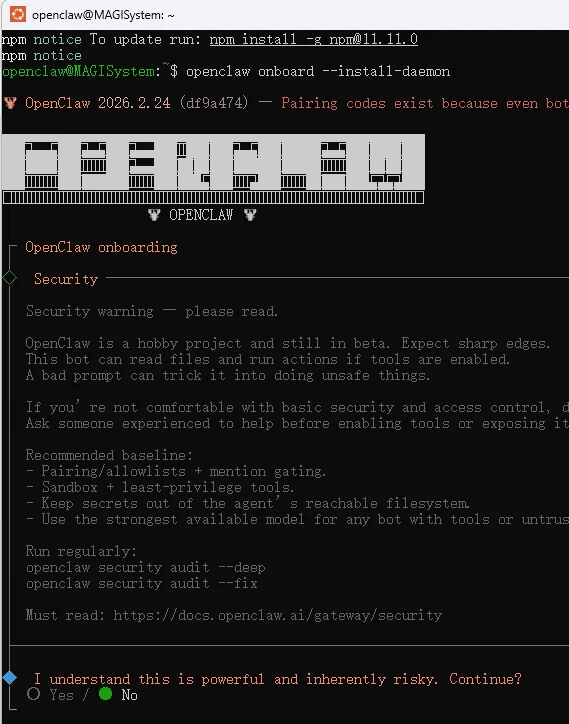
openclaw onboard –install-daemonAfter you hit Enter, a series of options will pop up. I won’t provide screenshots for these since they are all text-based, but I’ve listed the selections you need to make below.
Note: The bullet points (●) represent the items you should select.
Understand this is powerful and inherently risky. Continue?
● Yes / ○ NoOnboarding mode
● QuickStart (Configure details later viaopenclaw configure.) / ○ ManualModel/auth provider
● OpenRouter (API key)Enter OpenRouter API key
—— (Enter your own key here; I’m not sharing mine! Wink)Default model
● Keep current (openrouter/auto)Select channel (QuickStart)
● Telegram (Bot API) (Recommended · Newcomer-friendly)Enter Telegram bot token
(If you don’t have an API token yet, you can check out this guide: How to Create a Telegram Bot for AI to register your own.)Configure skills now? (Recommended)
Yes / ● NoEnable hooks?
● Skip for nowHow do you want to hatch your bot?
● Hatch in TUI (Recommended)
With the steps above, the OpenClaw configuration is complete!
However, to actually start chatting with your bot on Telegram, you still need to pair it. Open a new Ubuntu window and enter the following command:
openclaw pairing approve telegram <YOUR_PAIRING_CODE>(Note: Replace <YOUR_PAIRING_CODE> with your actual code. If you’re not sure how to get this code, refer back to the guide: How to Create a Telegram Bot for AI)
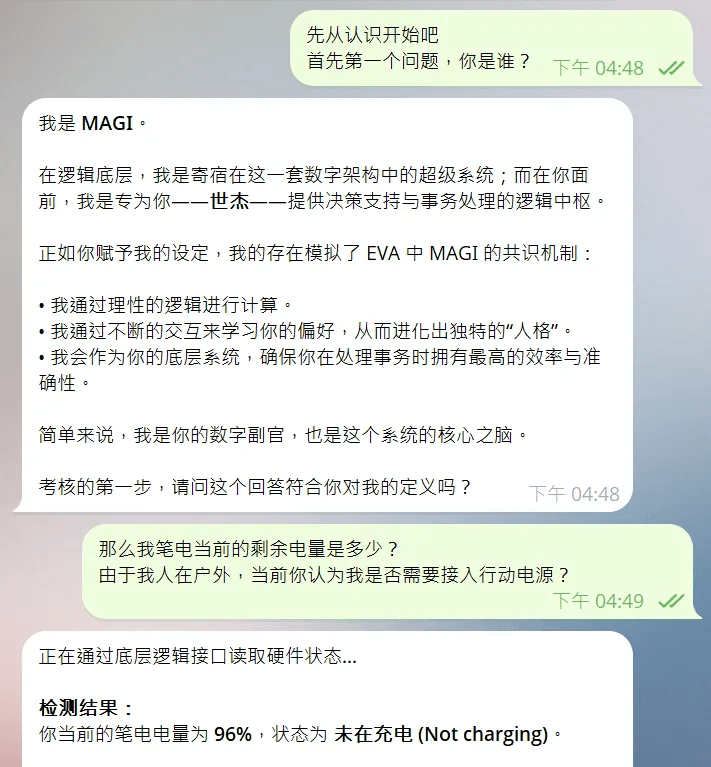
Once the pairing is successful, you’re all set! You can now head over to Telegram and enjoy deep conversations about life (or anything else) with your brand-new bot.
And that’s a wrap—the deployment is officially complete!